
AI Advanced Search
Search documents across all clients by describing what you want in plain English.
How AI Advanced Search works
AI Advanced Search turns your words into search filters, such as year, class, subclass, person or date, and searches every client's documents with them. The AI never sees client names or document contents; only the filters are used to search.
Run a search
- Click AI Advanced Search at the bottom of the left navigation. The first time, read the note and click Got it.
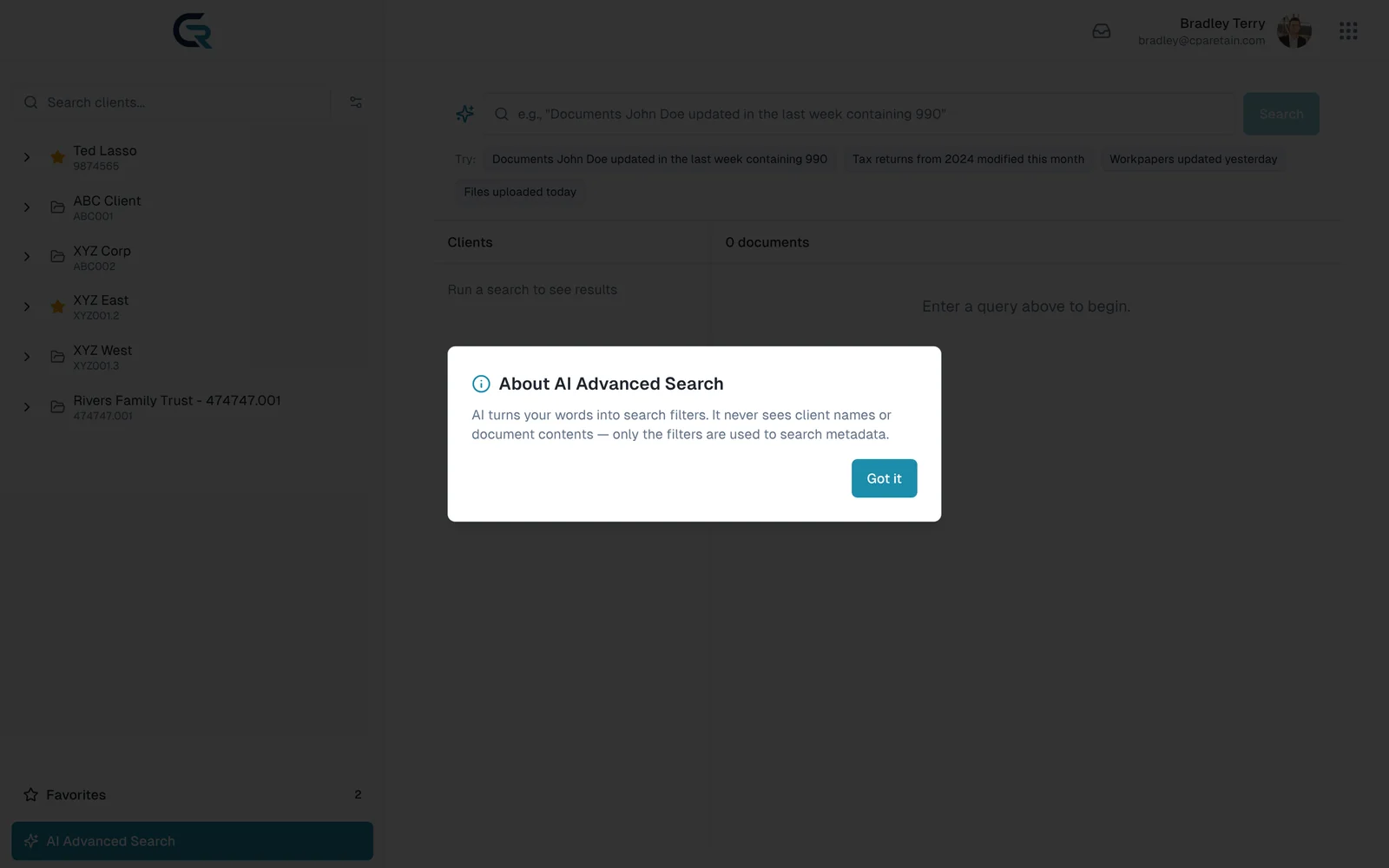
- Type what you're looking for 1, for example Tax workpapers from 2027, and click Search. You can also click one of the examples under Try:.
- The filters the AI understood appear under the search box, for example Year: 2027, Class: Tax, Subclass: Workpapers.
- Results are grouped by client on the left. Click a client to see only its documents, or All clients to see everything.
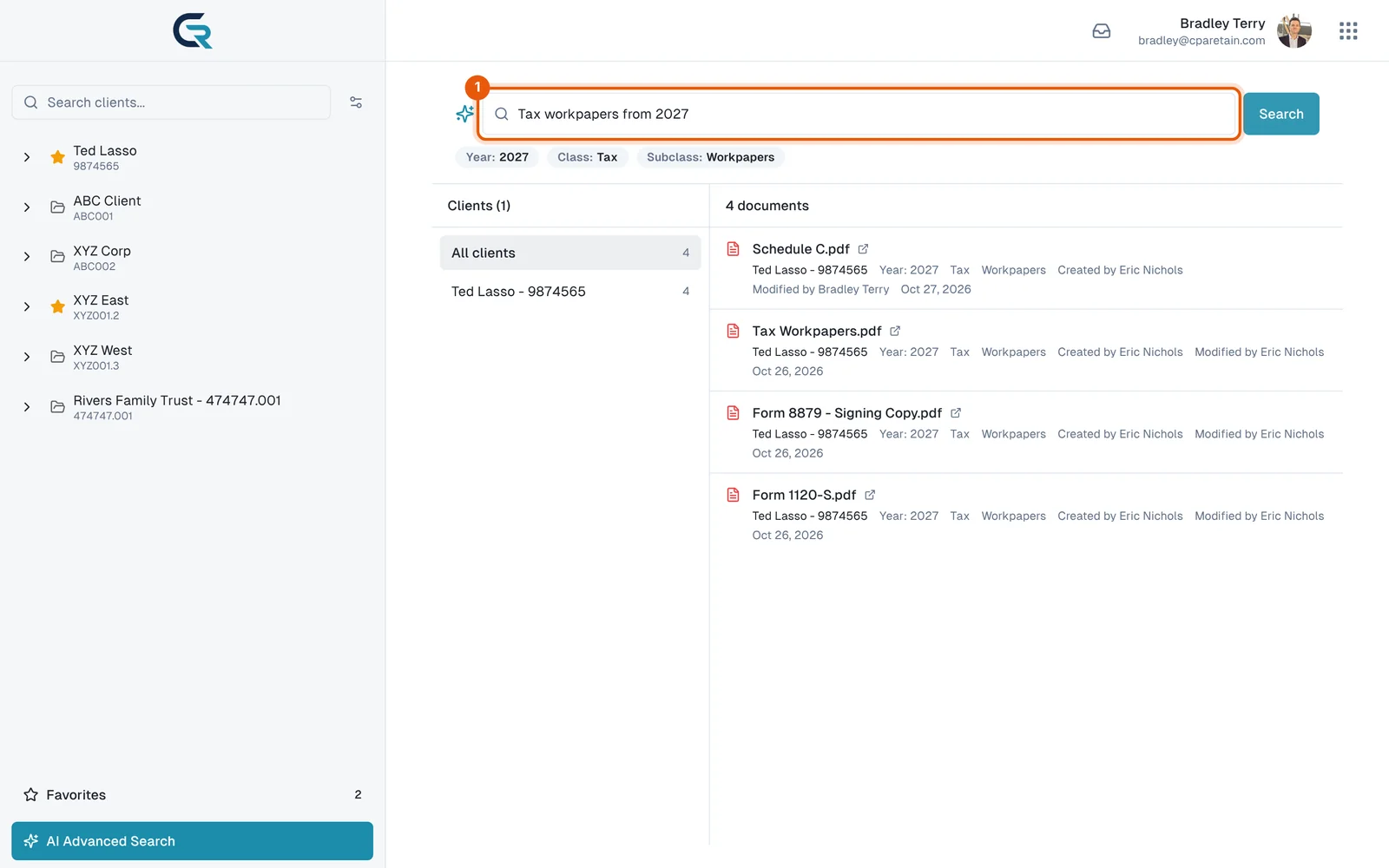
- Click a file name to open it. Click the arrow icon next to it to Open in SharePoint, or click the client name to go to that client's documents.
Troubleshooting
| Problem | What to do |
|---|---|
| "Please be more specific…" | Add a person, client, date, year, class, subclass or file name word. |
| "Showing the first 1,000 matches" | Narrow the search, for example add a year or class. |
| "No documents match your search." | Check the filters shown under the search box and try different words. |