
How to Move or Copy Files
Move a file to another client, or copy one or more files to another client with their own class, subclass and year.
Move or copy?
- Copy puts a copy of the file on another client. The original stays where it is.
- Move moves the file to another client and removes it from this one.
Both let you choose the class, subclass and year the file gets at the other client.
Copy a file to another client
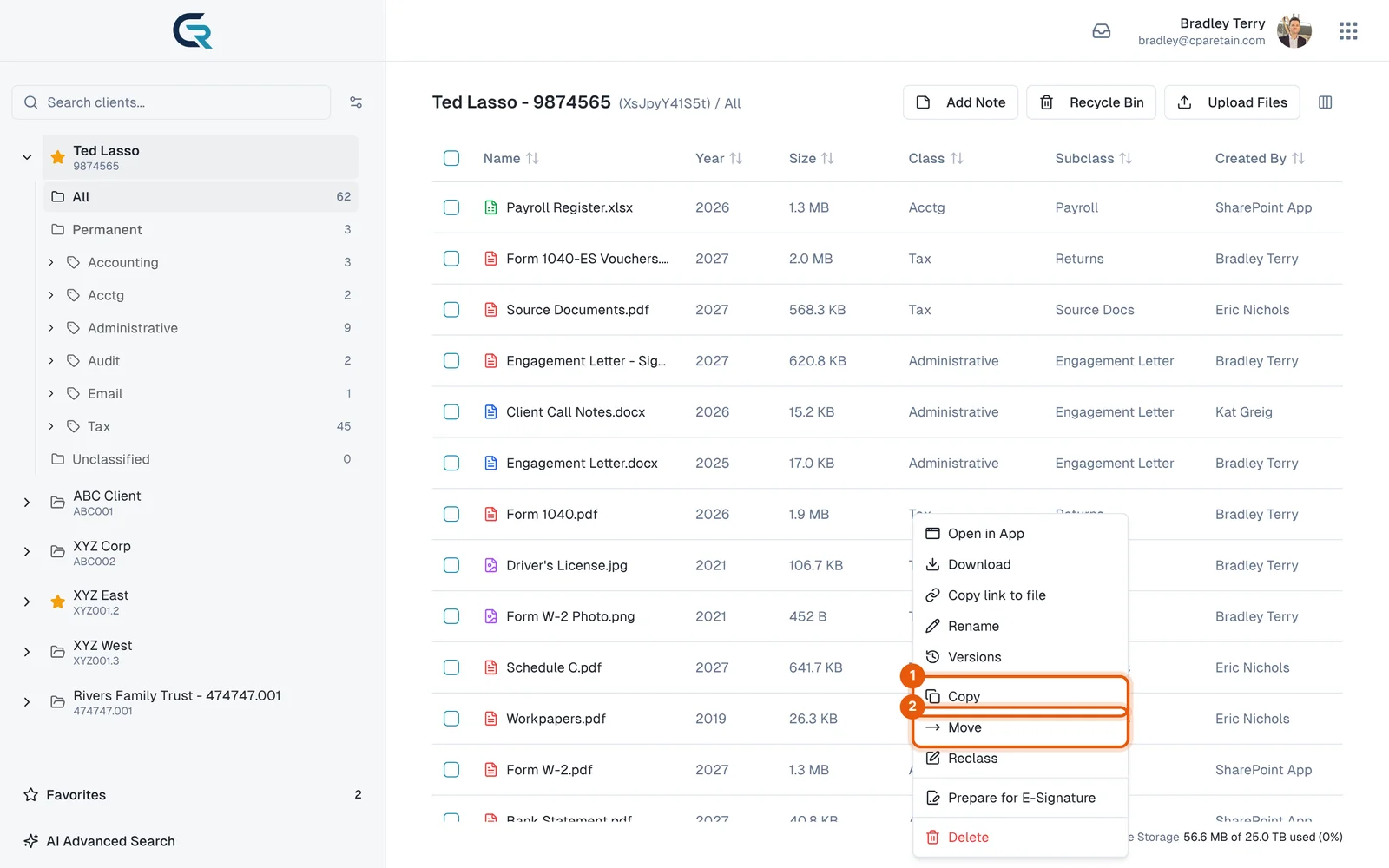
- Open the client, right-click the file and click Copy 1. (Move 2 is right below it.)
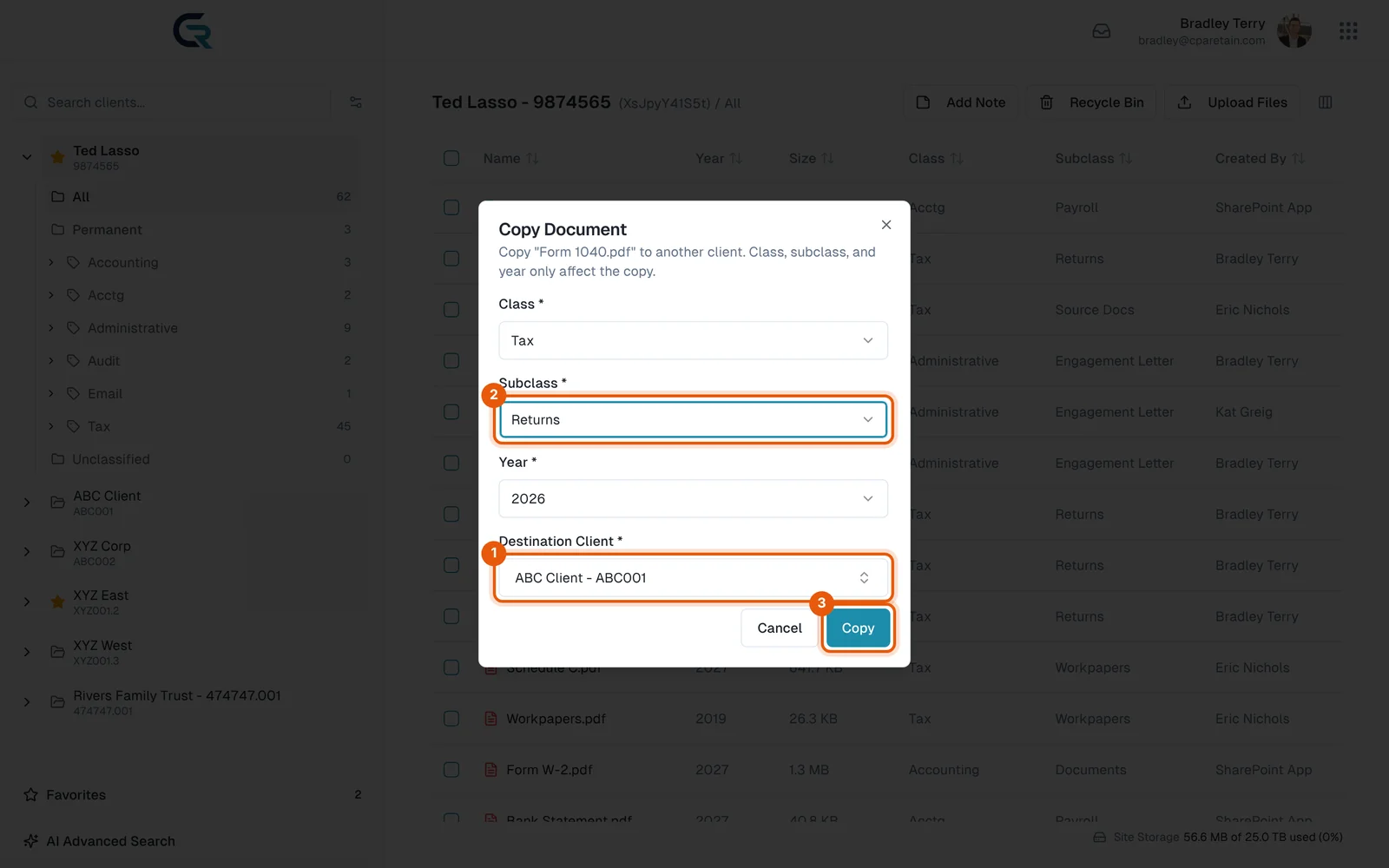
- In Copy Document, choose the Destination Client 1. Search by client name or ID. Then choose the Class, Subclass 2 and Year for the copy, and click Copy 3.
CPA Retain shows Copied 1 document successfully.
Move a file to another client
- Right-click the file and click Move.
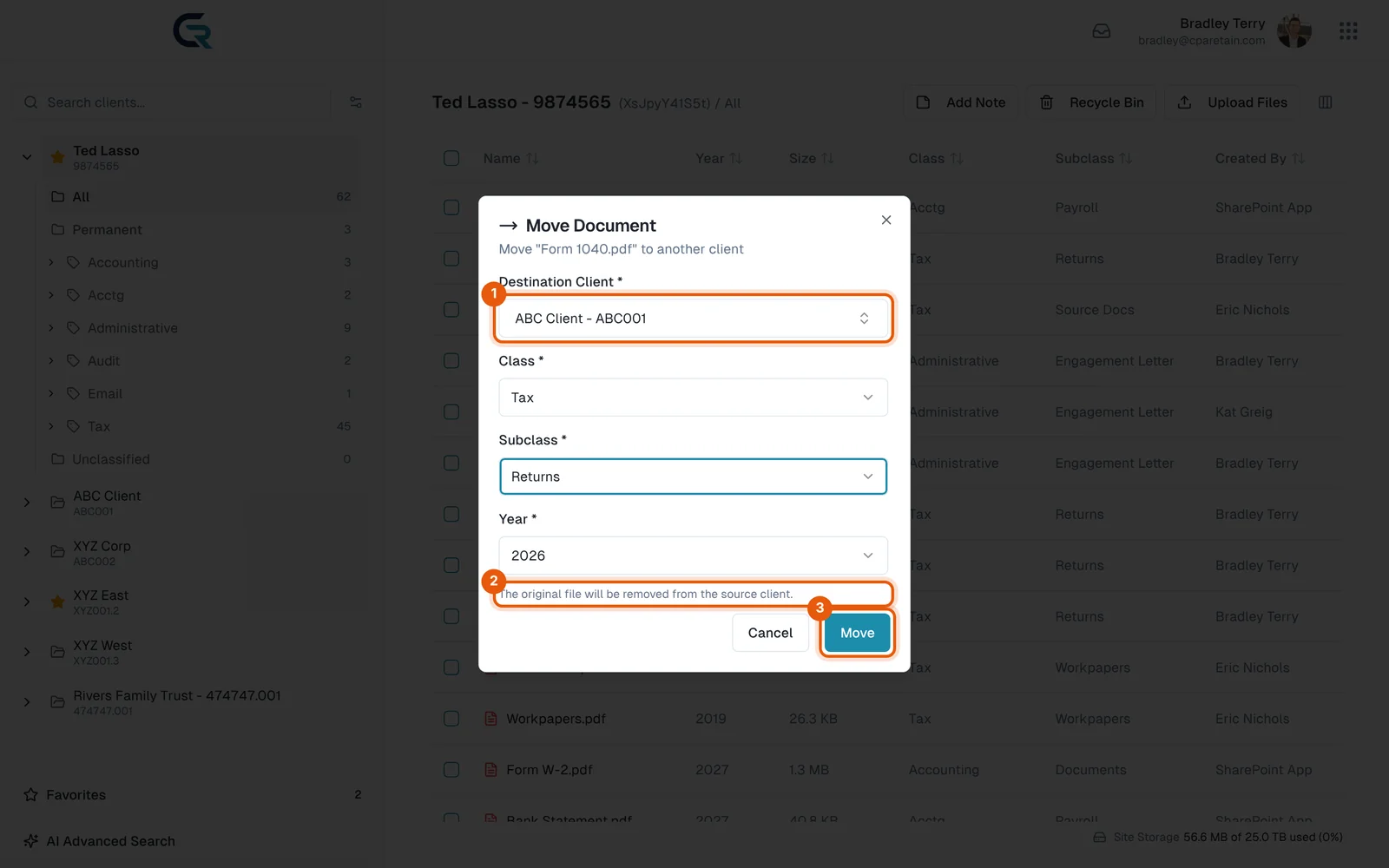
- In Move Document, choose the Destination Client 1, then the Class, Subclass and Year it should have there. Click Move 3.
CPA Retain shows Moved 1 document successfully.
Troubleshooting
| Problem | What to do |
|---|---|
| "Please select a destination client" | Choose a client in Destination Client before clicking Copy. |
| "Please fill in all required fields" | Choose a destination client, class, subclass and year before clicking Move. |
| The client you want isn't in the list | Search by the client's name or client ID. |
| "Failed to copy N documents" or "Failed to move N documents" | Try again. If it keeps failing, copy or move the files one at a time. |