
Managing Users
Add people to your firm's workspace, import them in bulk, change roles and remove access.
Open Users
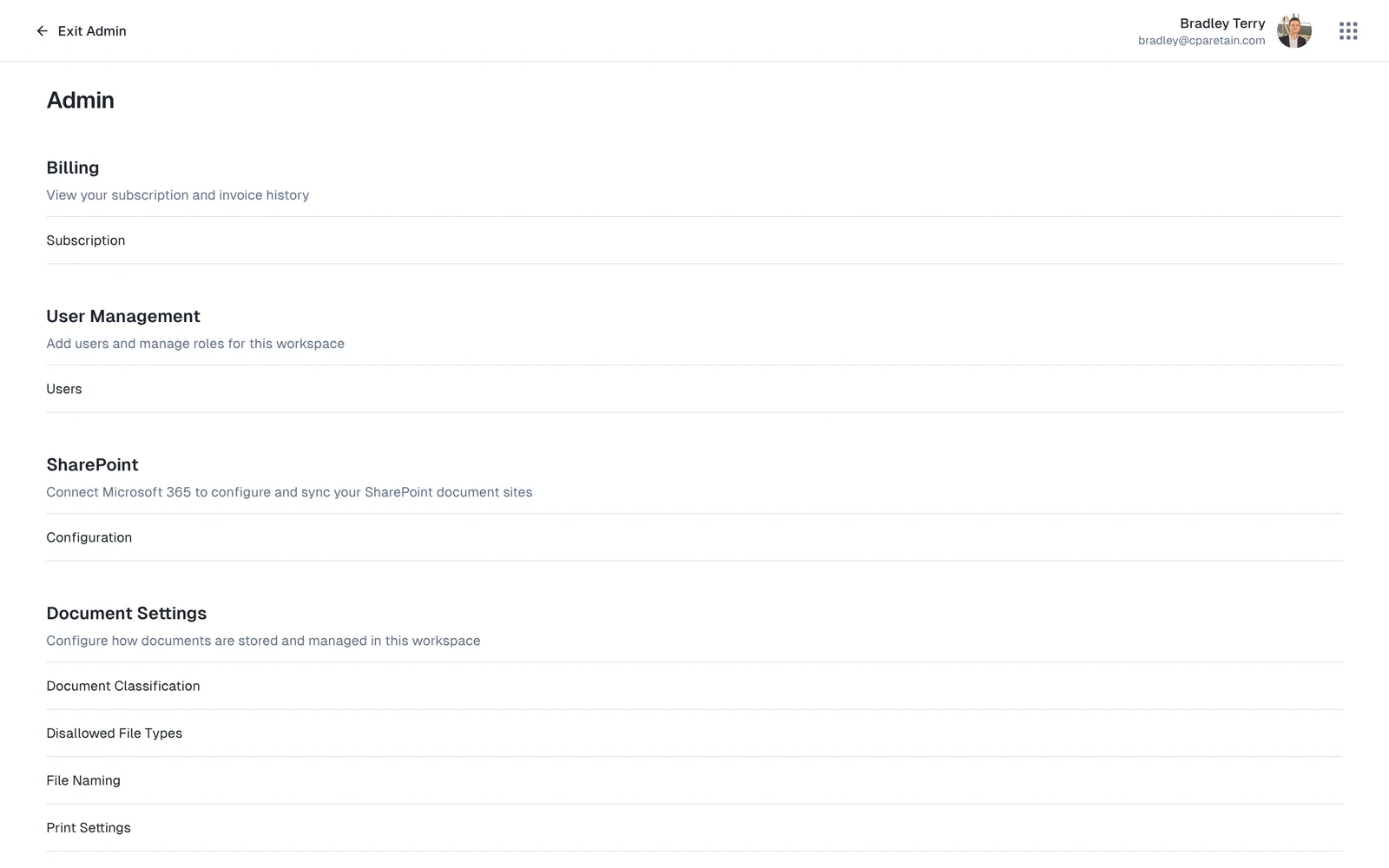
Click the App launcher, then Admin. Under User Management, click Users.
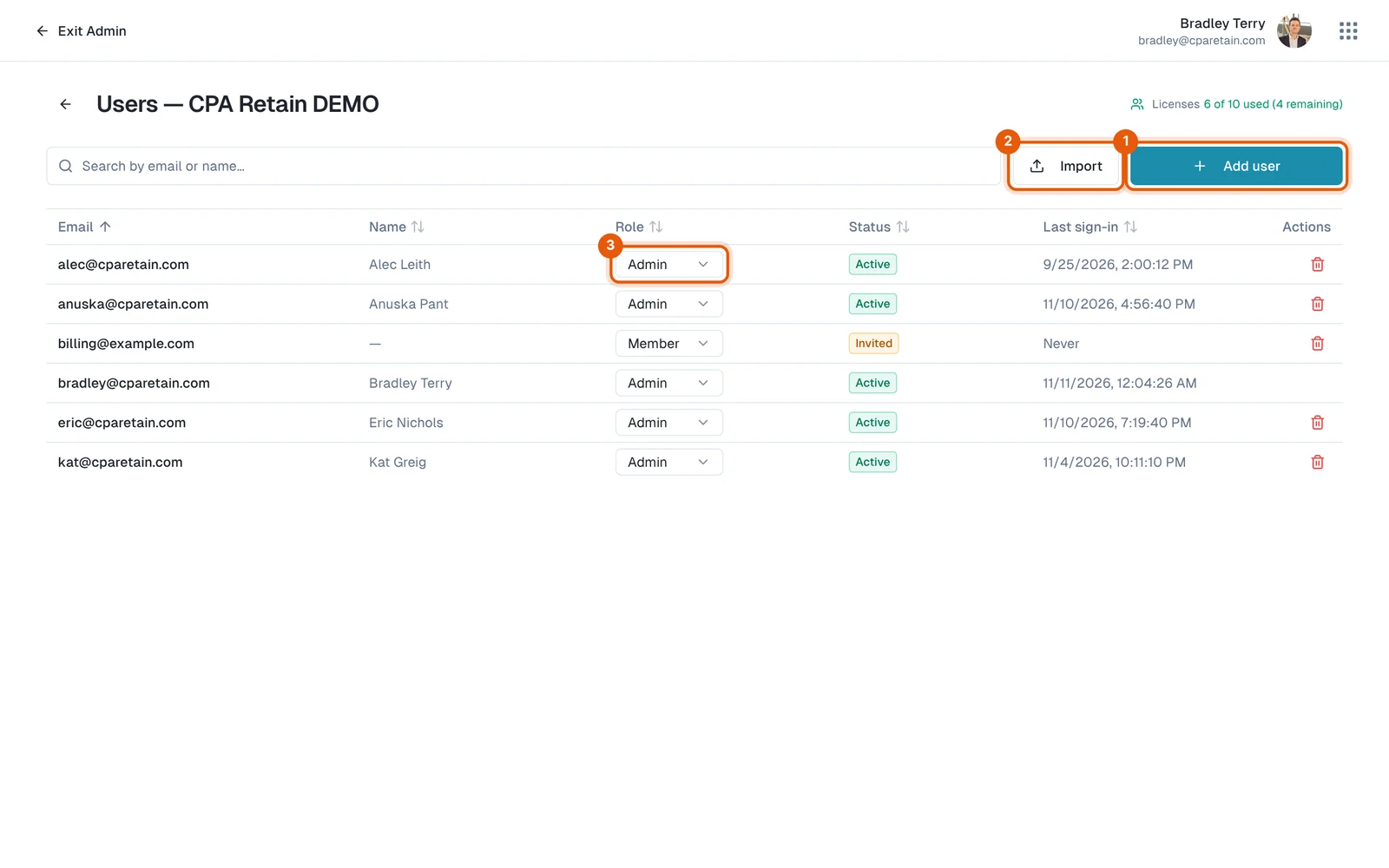
The Users page lists everyone in the workspace with their role, status (Active or Invited) and last sign-in. The top right shows how many licenses are used.
Add a user
- Click Add user 1.
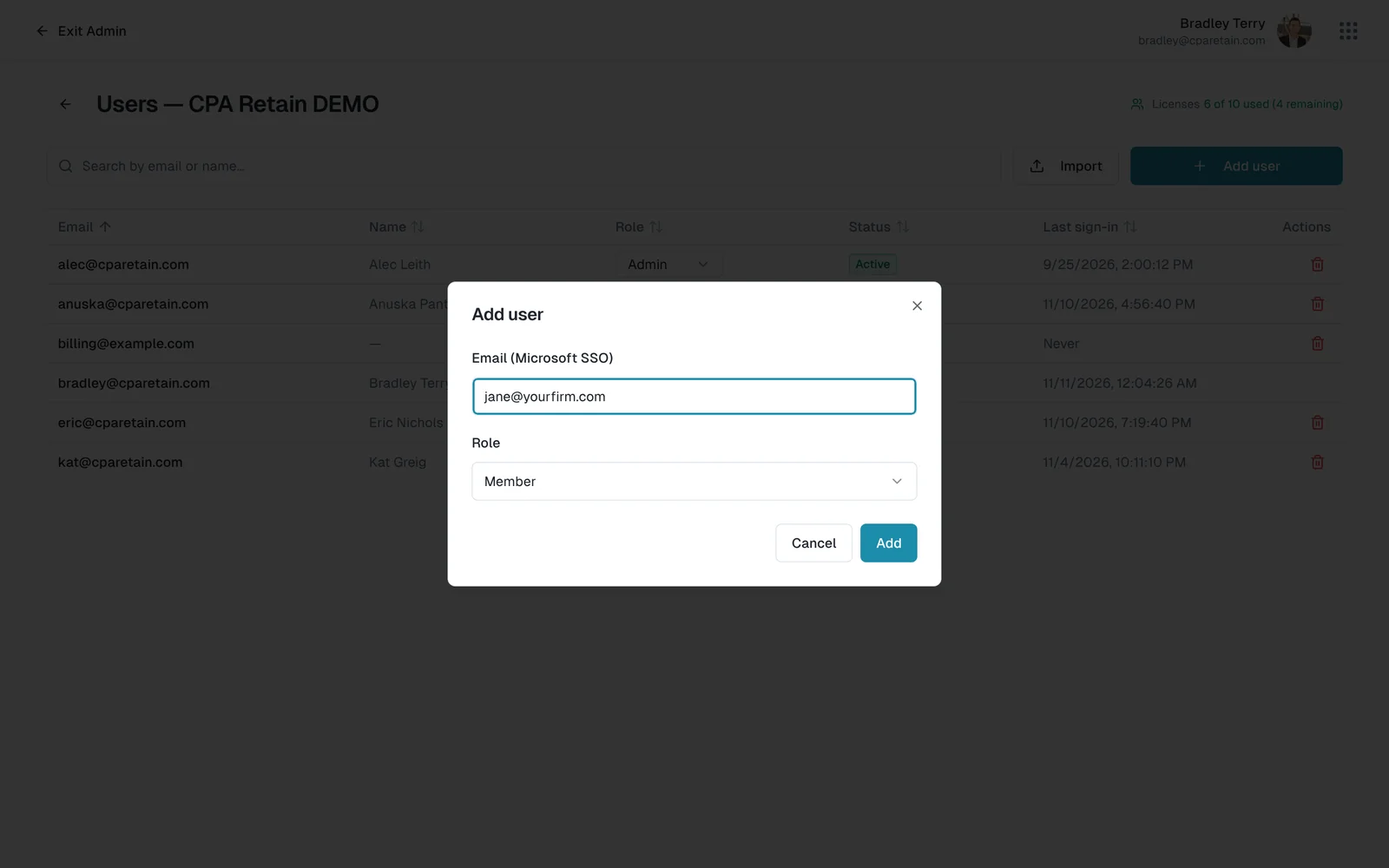
- Enter the person's Email (Microsoft SSO), the address they use to sign in to Microsoft 365, and choose a Role.
- Click Add. CPA Retain shows User added and sends them a welcome email.
Import several users
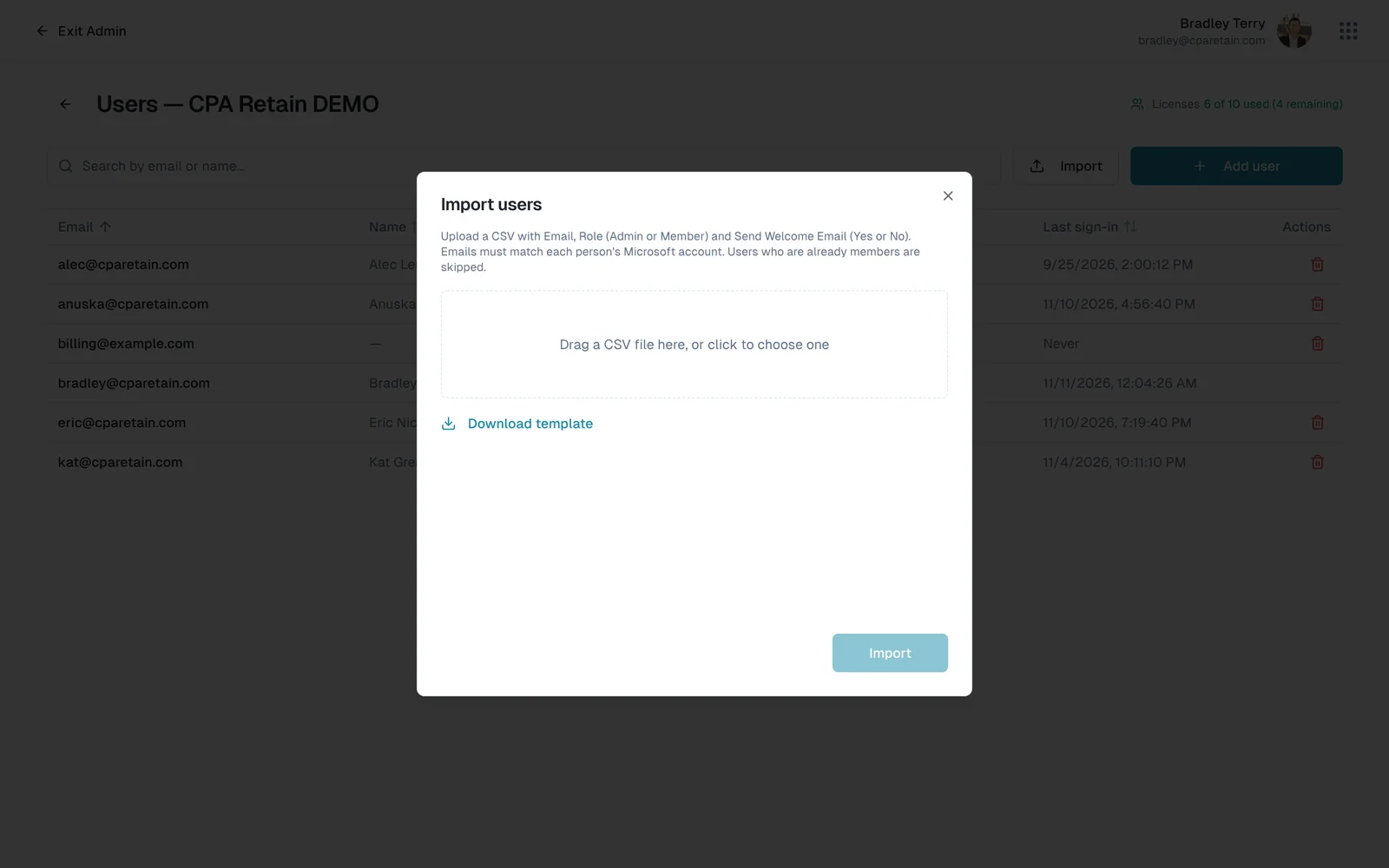
- Click Import 2, then Download template.
- Fill in the CSV with each person's Email, Role (Admin or Member) and Send Welcome Email (Yes or No).
- Drag the CSV into the dialog, check the rows, and click Import.
Roles
| Role | Can |
|---|---|
| Member | Work with all client documents and integrations. |
| Admin | Everything a Member can, plus the Admin settings. |
Change someone's role with the Role dropdown 3. It saves straight away.
Remove a user
Click the trash icon on their row and confirm with Remove. They lose access immediately, and you can add them again any time.