
Opening, Downloading and Sharing Files
Preview a file, open it in Word, Excel or a PDF app, download it, or copy a link to it.
Preview a file
Click a file's name in the document list to open a preview inside CPA Retain.
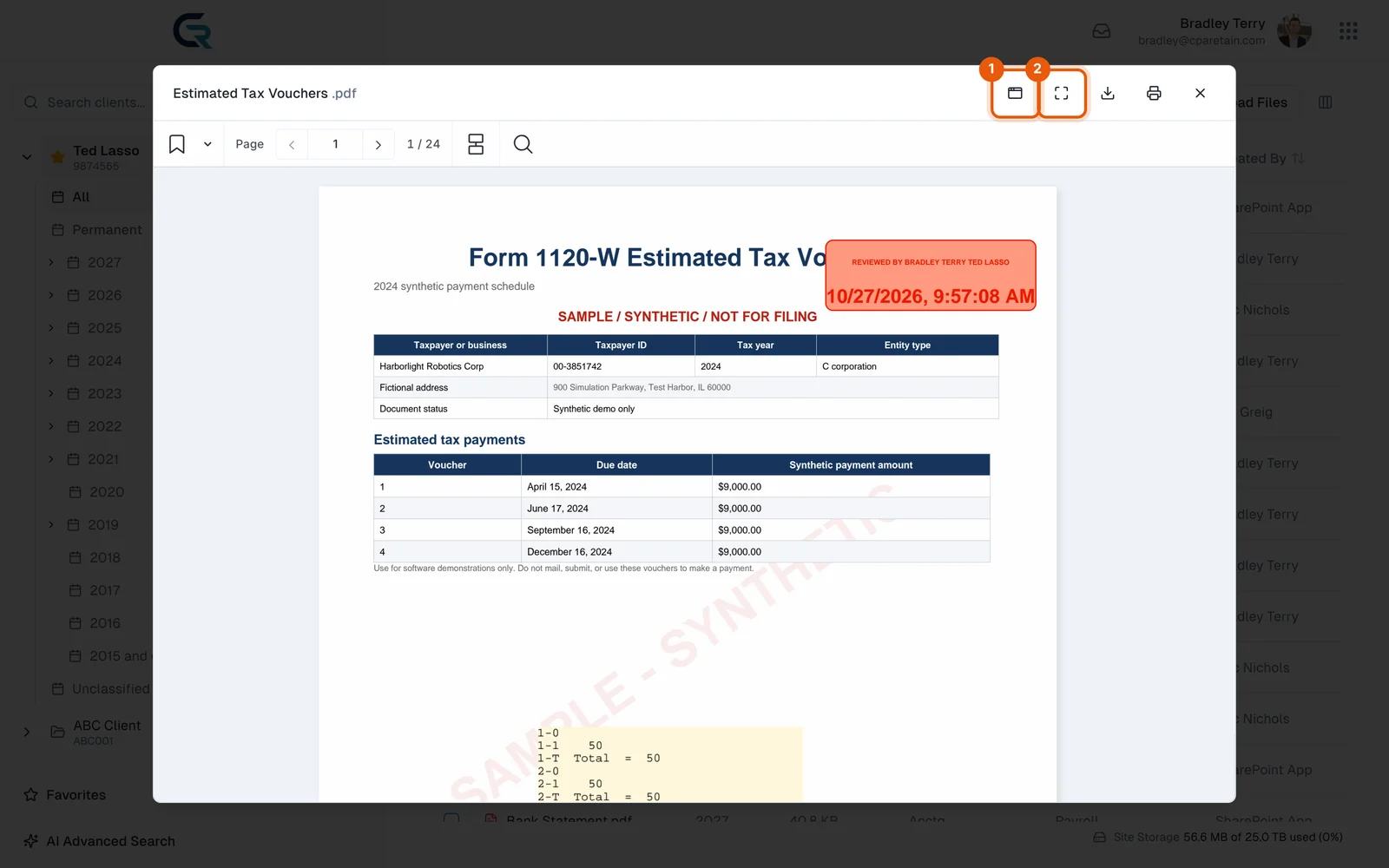
- The buttons at the top right let you Open in App 1, Open full screen 2, download, print or close the preview.
- For PDFs, use the toolbar below to show Bookmarks, move between pages, change how pages scroll, and Search Document.
Open, download or copy a link
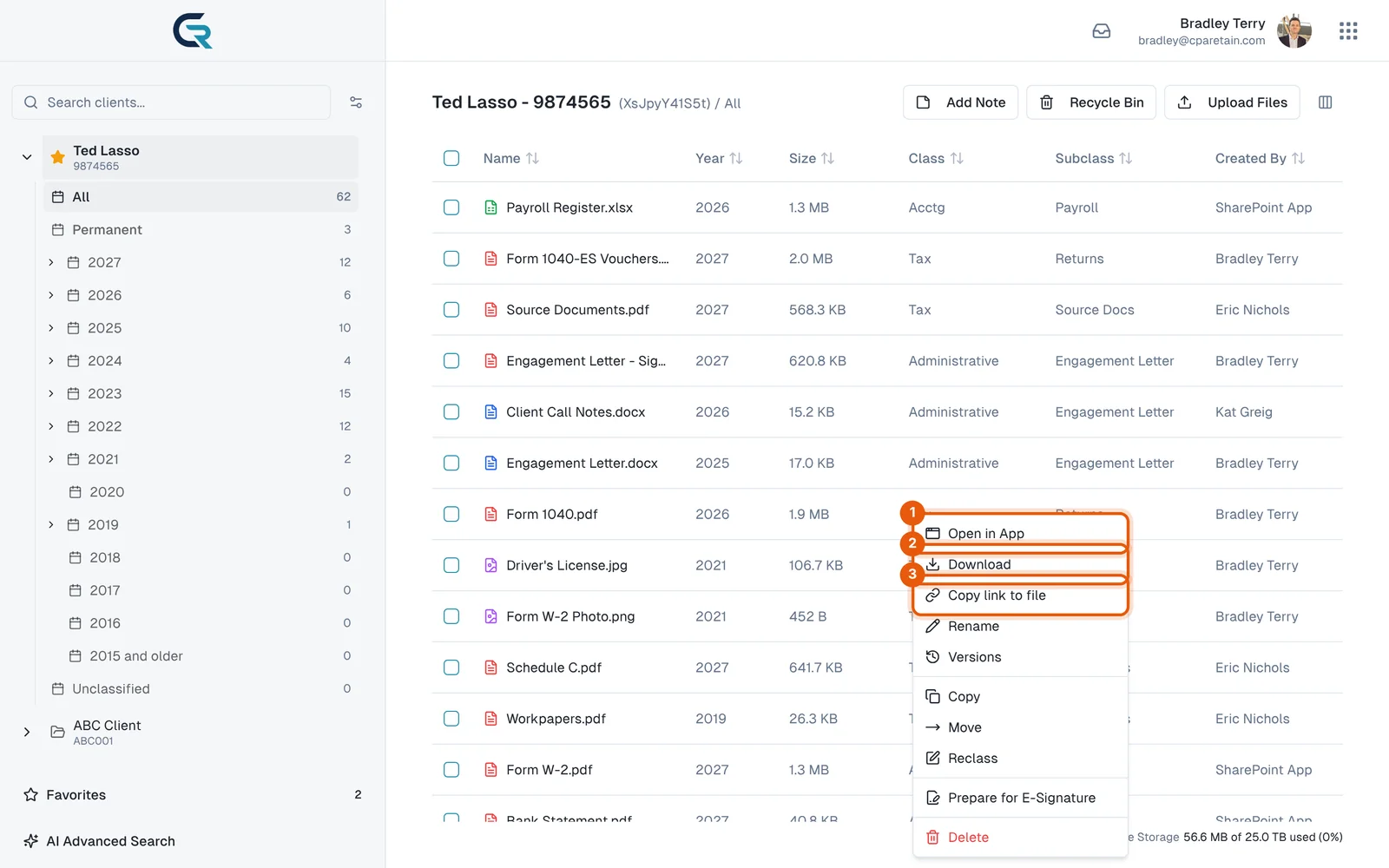
Right-click the file and choose:
| Option | What it does |
|---|---|
| Open in App 1 | Opens Word, Excel and PowerPoint files in the desktop app, and PDFs through OneDrive. Shown for PDF and Office files. |
| Download 2 | Saves a copy to your computer's downloads folder. |
| Copy link to file 3 | Copies a link to the file. For a PDF, the link opens it in CPA Retain; for other files, it opens the file in SharePoint. |
Troubleshooting
| Problem | What to do |
|---|---|
| "Sign in with Microsoft again, then try Open in App." | Sign out of CPA Retain, sign back in, then try again. |
| "Could not open this PDF. Confirm OneDrive is running…" | Start the OneDrive desktop app and try again. PDFs open through OneDrive. |
| "No link available for this file" | The file hasn't finished syncing from SharePoint yet. Try again in a minute. |