Getting Around CPA Retain
Sign in, find a client, and learn the main parts of the screen.
Sign in
Go to https://app.cparetain.com and sign in with your Microsoft work account. CPA Retain uses the same account you use for Outlook and SharePoint, so there's no separate password.
The main screen
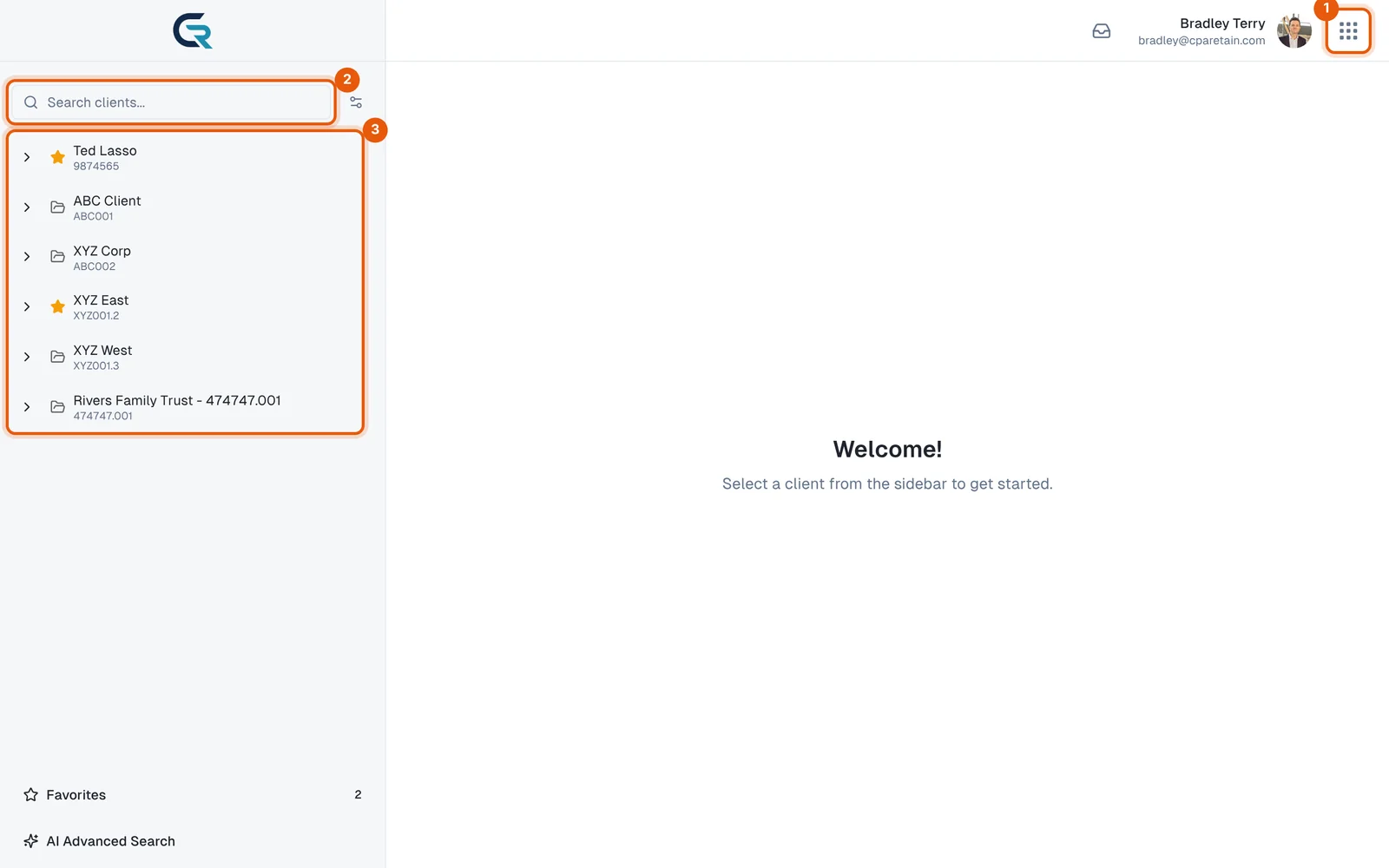
- App launcher 1 (the grid at the top right) switches between the areas of CPA Retain.
- Search clients… 2 finds any client by name or client ID.
- The left navigation 3 lists your recent clients. Click a client to open its documents.
The app launcher
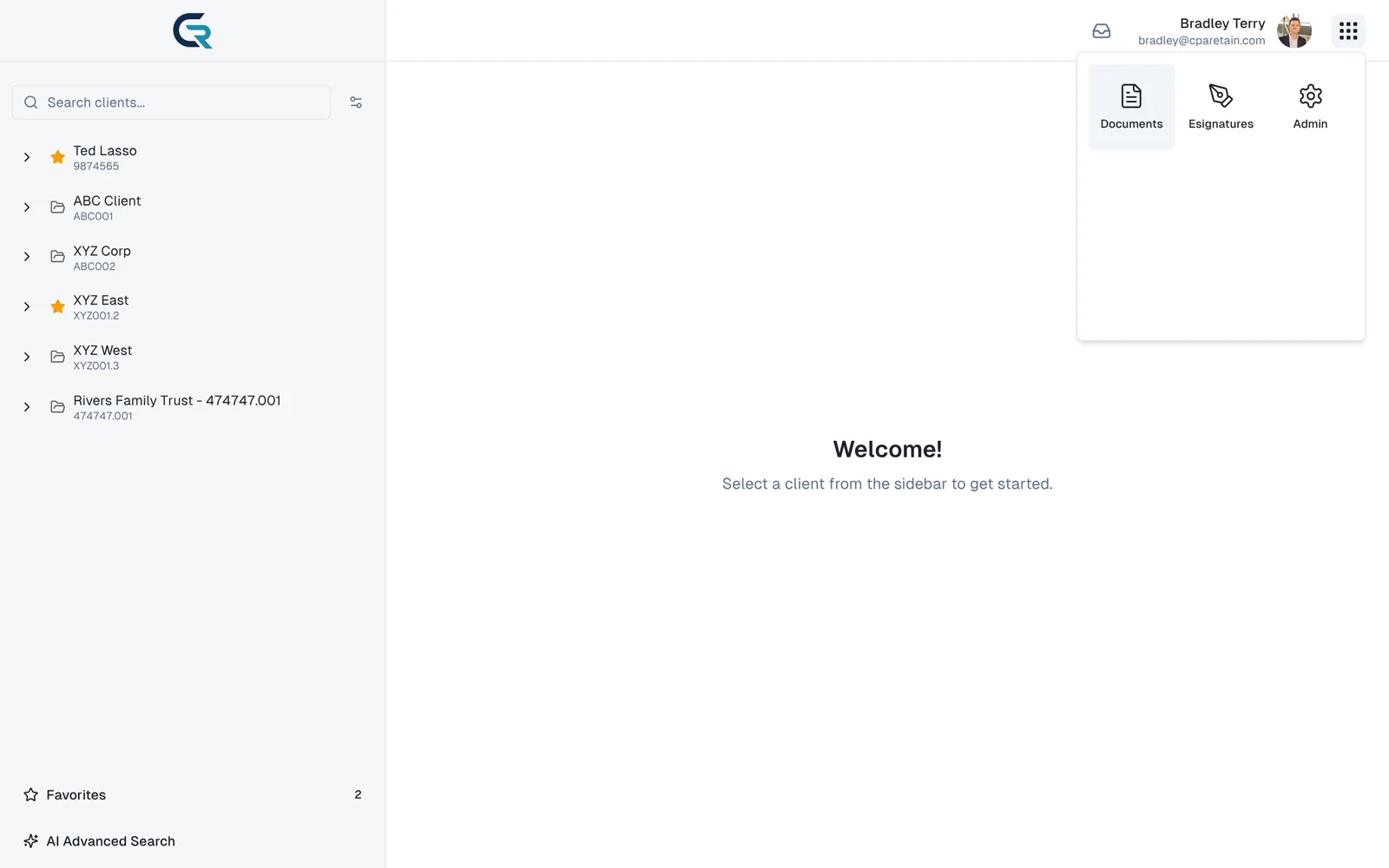
Click the App launcher to switch areas. Which tiles you see depends on what your firm uses and your role:
| Tile | Opens |
|---|---|
| Documents | Client documents (the main screen). |
| Admin | Firm settings, for administrators. |
Client shortcuts
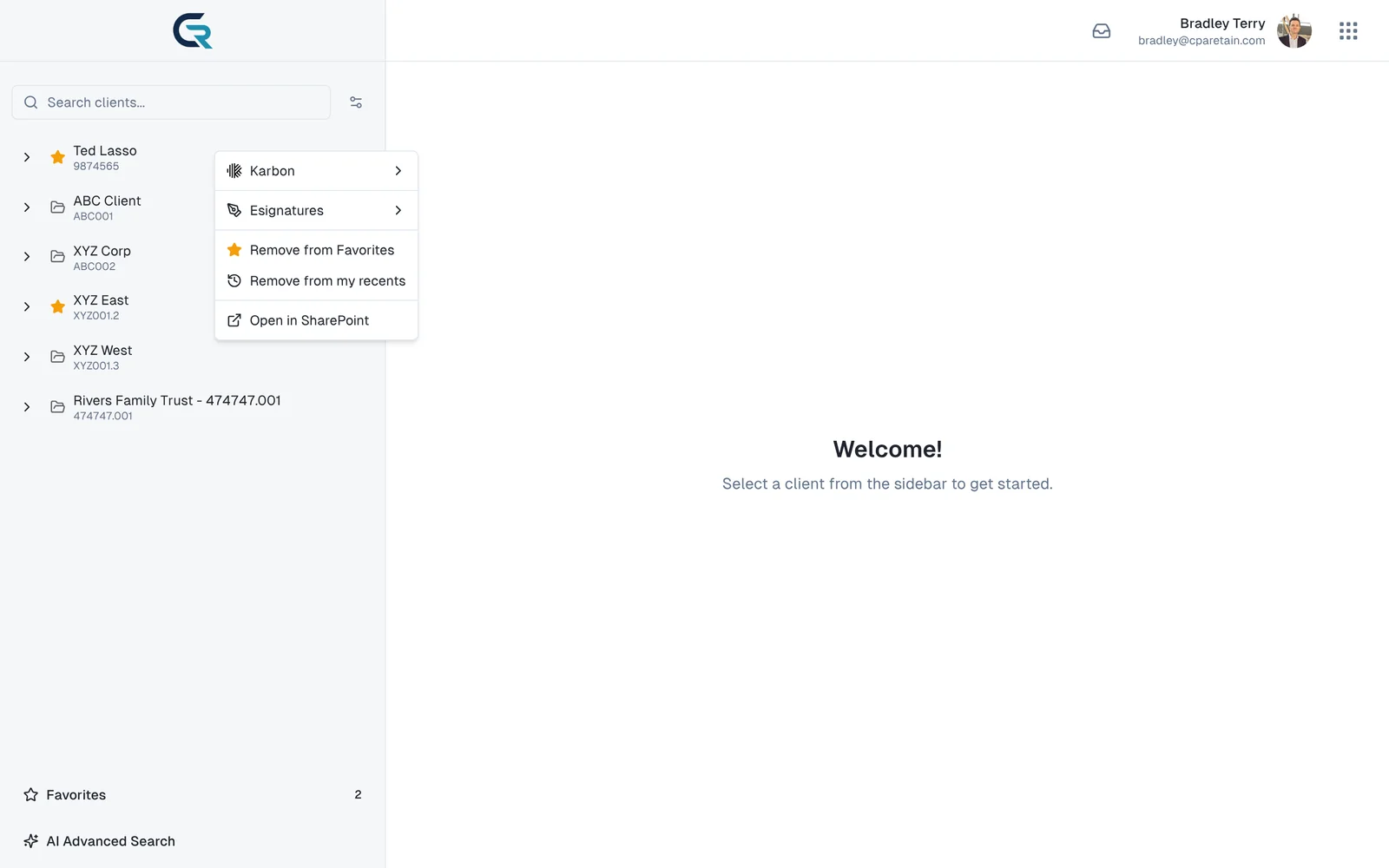
Right-click a client in the left navigation for shortcuts:
- Add to Favorites / Remove from Favorites.
- Remove from my recents: take the client off your recent list.
- Open in SharePoint: open the client's SharePoint site in a new tab.
Your account menu
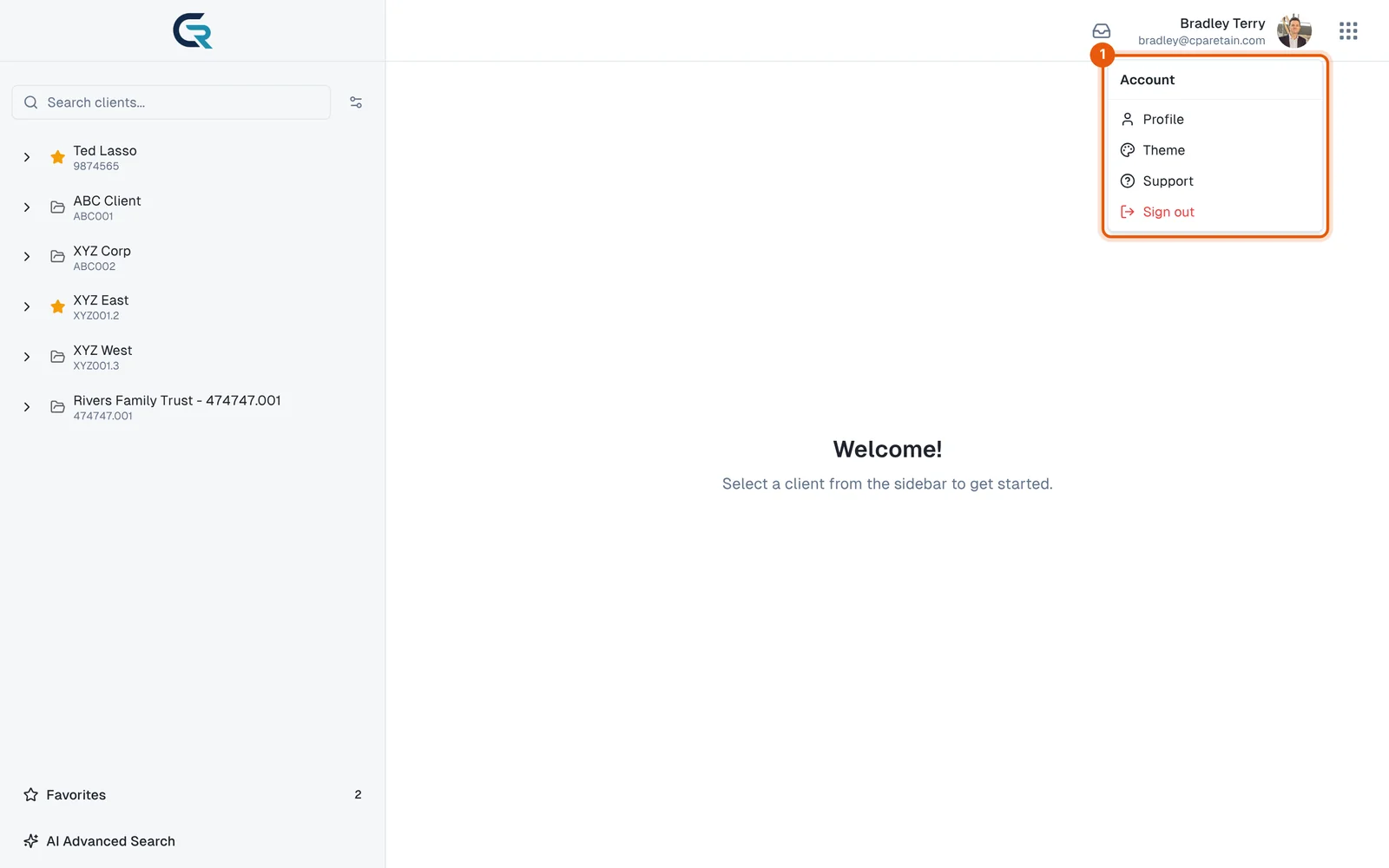
Click your name at the top right for Profile, Theme, Support and Sign out.